Getting started
This page covers the basics that apply to everyone, whatever your role.
Signing in
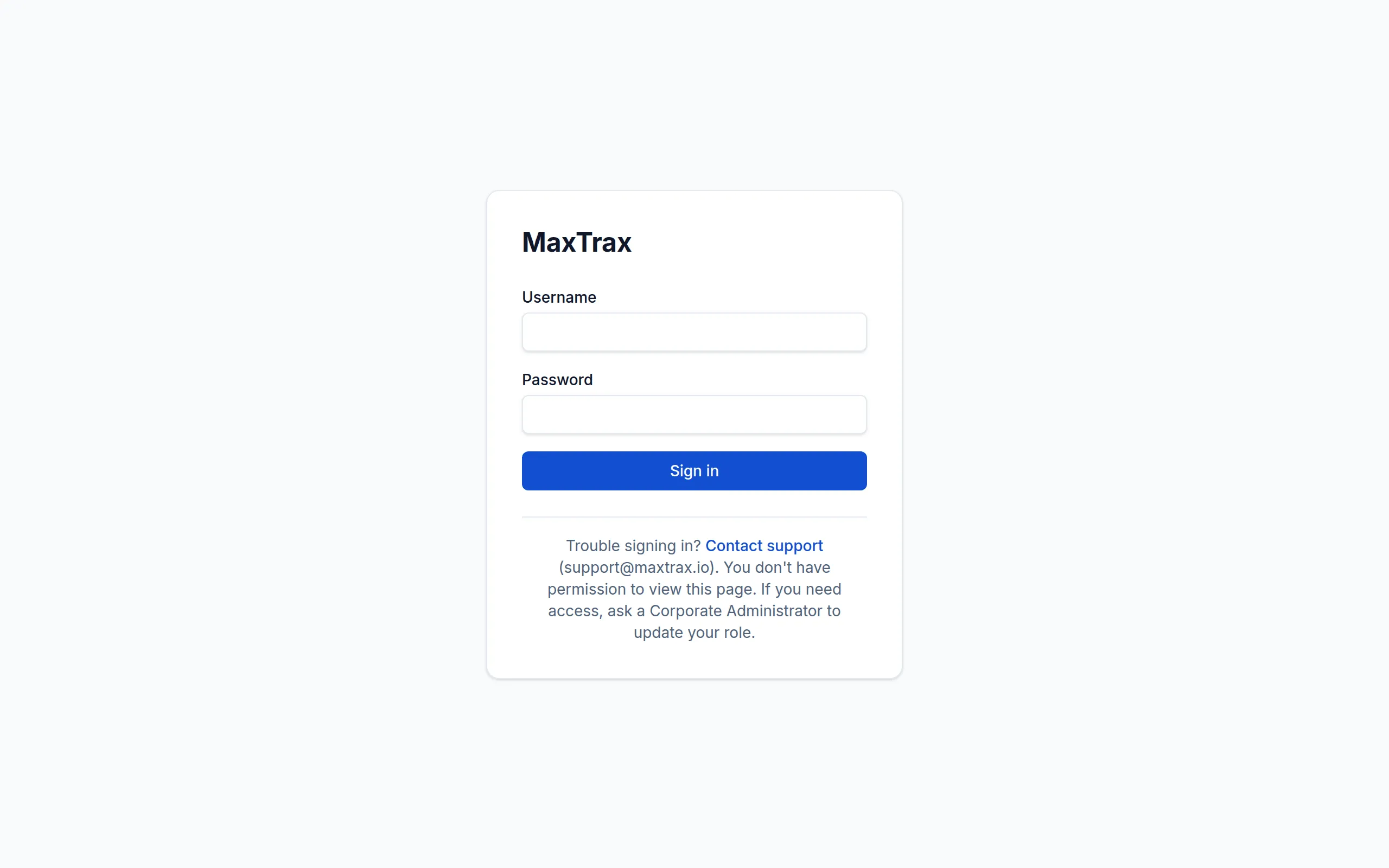
Section titled “Signing in”MaxTrax is a web application. Your administrator creates your account and gives you the access your job needs — for example, recording inspections, logging NDT results, or administering the project. (Welders themselves don’t have MaxTrax accounts — their work is recorded by whoever enters and reviews it, such as a foreman or coordinator; see Welder.) Once your account exists:
- Open the MaxTrax URL your project provided in a web browser.
- Enter your username and password and sign in.
- The first screen you see depends on your role and the projects you have access to.
If you can’t sign in or don’t yet have an account, contact your project administrator — only an admin can create accounts and assign roles. See Manage users & roles. The sign-in page says the same thing on a Trouble signing in? line: a Contact support link that opens an email, and a reminder to ask a Corporate Administrator on your project if you need an account or your sign-in isn’t working.
A message about not having permission belongs after you sign in, not before. If you see one on a screen once you’re signed in, your account is fine — your role simply doesn’t cover that screen. Ask your administrator to adjust it; see Manage users & roles.
Sign-ins don’t last forever, but you’ll rarely notice: if yours is close to lapsing while MaxTrax is open, the app renews it in the background. If it can’t, you’ll see Your session has expired and a Sign in again button — see Signed out unexpectedly.
Getting help inside the app
Section titled “Getting help inside the app”Once signed in, look for the ? help button — in the header on a computer, or in the menu on a
phone. It opens a panel with a link to the help page for whatever screen you’re on, a way to search
this help center, your app version, and a contact-support link. Your account menu (next to your
name) also has a Help entry that opens the same panel, plus Sign out.
Finding your way around
Section titled “Finding your way around”Most screens follow the same layout: a navigation sidebar on the left (grouped into Operations, Quality, Reports, and Admin), your current project and account along the top, and the screen’s content in the middle. Here’s the Welds screen — every weld on the project, each with its status:
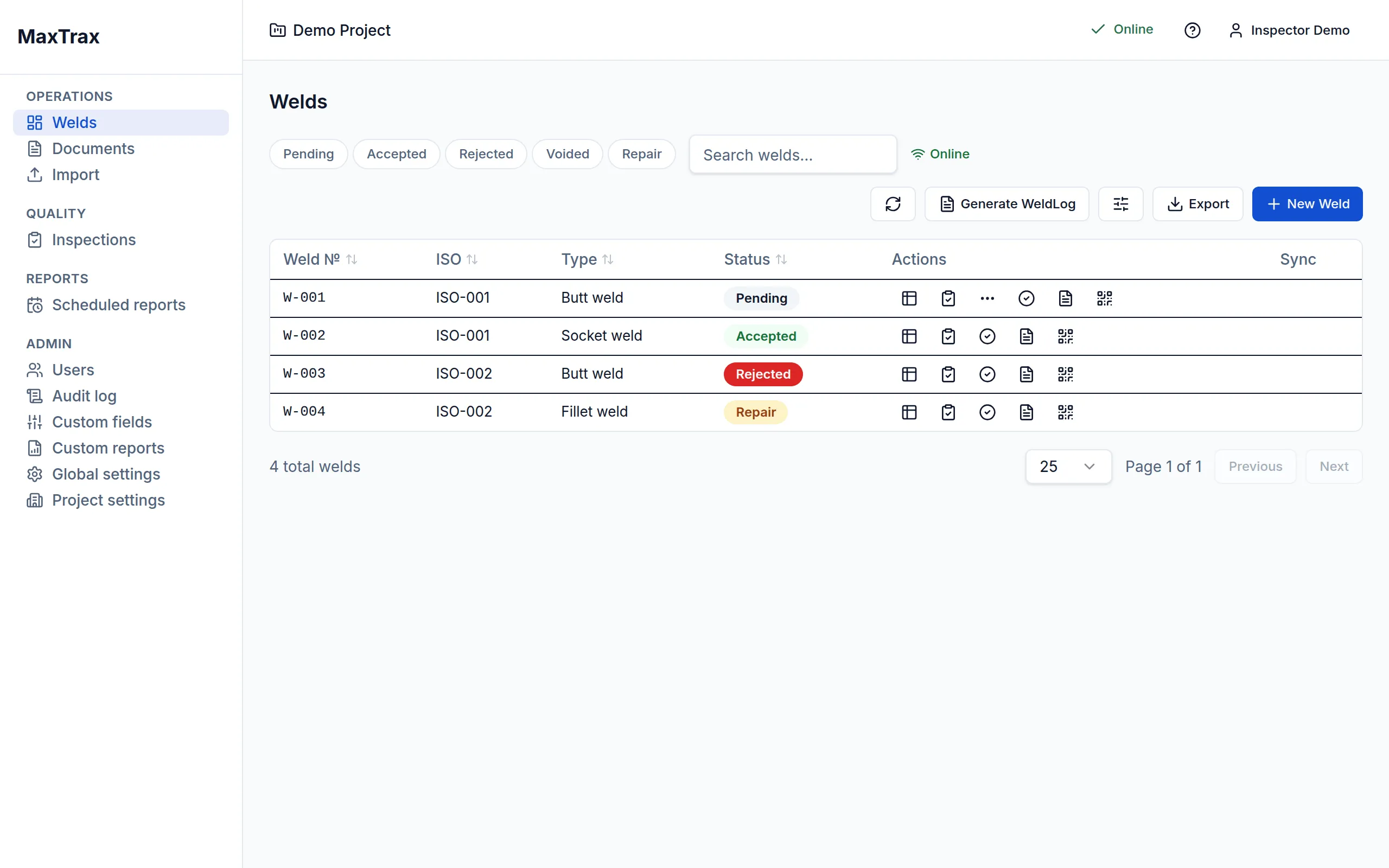
For most day-to-day work you’ll actually land on Home — the project work queue. See Operations Home for what it shows and how to read it.
Most work in MaxTrax is organized around a few core ideas. You’ll see these terms throughout the guides:
- ISO (isometric drawing) — a drawing of a pipeline spool. Welds belong to an ISO.
- Weld — a single weld joint on an ISO, with a number, type, size, schedule, and status.
- Weld status — where a weld is in its lifecycle:
Pending,Accepted,Rejected,Repair, orVoided. - NDT — non-destructive testing (radiographic, ultrasonic, and more) used to inspect welds.
- Film interval — a section of an NDT film strip mapped to one or more welds.
- Test package — a set of ISOs and welds released together for pressure testing.
- PQR / WPS — the procedure qualification record and welding procedure specification a welder works to.
Jumping around with the command palette
Section titled “Jumping around with the command palette”Press Ctrl K (⌘K on a Mac) anywhere in the app to open the command palette — a searchable jump-to for screens, welds, and ISOs, plus a handful of quick actions (New weld, Complete weld, Send NDE, Void weld, and toggling between the Desk and Field layouts). It only shows you the screens and actions your role already has, and searches only weld number, ISO number, screen names, and action names — not heat numbers or welder stencils.
How this help center is organized
Section titled “How this help center is organized”Guides are grouped by role, because the task you need to do depends on the job you’re doing:
- Inspector — recording inspection results and the repair workflow.
- NDT technician — film intervals, radiographs, and NDT records.
- Welder — finding your assigned welds.
- Admin — users, roles, and project setup.
Pick your role from the sidebar to see its task guides. Administrators can see exactly what each role is allowed to do in Roles & capabilities.
Related
Section titled “Related”- Coming from the legacy app — what changed, what’s gone, and what’s new if you used the previous version of MaxTrax.
- Working offline — the sync indicator, needs-attention inbox, and conflict dialog, so you can trust MaxTrax when you lose signal.
- Reference — the exact rules MaxTrax enforces: state machines, roles, the import spec, and the report catalog.
- Manage users & roles — how accounts are created and roles assigned.